
1️⃣ Where YOU do Work!
The Schedule Module is where the day-to-day operations of your organization come to life. This is where you’ll create, manage, and adjust appointments to ensure clients receive the services they need and providers have clear, accurate schedules to follow.
With tools designed for efficiency and compliance, the Schedule Module helps your team coordinate sessions, prevent scheduling conflicts, align appointments with authorizations and staff credentials, and keep the entire organization running smoothly. Whether you're adding a single session, building recurring appointments, or managing group schedules, this module keeps everything organized and connected behind the scenes.
By maintaining an accurate schedule, you support seamless service delivery, reduce downstream billing issues, and help create a reliable experience for both clients and providers.
Let's get started, access the Schedule Module by clicking it from the left hand menu.

The first time you access the schedule you will need to select a Facility and a Filter.
Click the Facilities drop-down and select a Facility or multiple Facilities that you want to view.
Click the Search icon, select any additional filters you may want and click Apply .
📌 NOTE : Click Apply without any selections if you want an unfiltered calendar.

3️⃣ Create Appointment
Learn More
Checkout the Help Center Articles related to the Appointments created in the video.
4️⃣ Search, Filter, and View
Search:
Search for Provider, Client, Status and more.
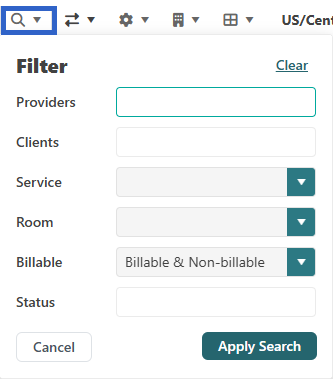
Filter:
Filter by Service Provider, Patient, Service, Room, or Billable. This will be what is displayed first when looking at each block of scheduled time.

Facilities:
Customize which facilities you view on your calendar. This can help you narrow down a search for a specific client or provider, or make or faster load times if your organization has multiple facilities.

You can view and update prospect details, build out their profiles, search for prospects, and filter by status—New, In Progress, Confirmed, Waitlist, or Inactive. Click through the steps below to see each feature.
4️⃣ Manage Appointments
Edit Appointments
Editing appointments is quick and easy. By double clicking the appointment you wish to edit, you simply click the green "Edit" button at the bottom of the appointment, make the desired changes, and then click "Save."

Cancel Appointments

Delete Appointments

Next Lesson: 3️⃣ Boost Schedule Workflows >